/ Java EE Support Patterns

2.10.2011

How to monitor native memory utilization of a 32 bit IBM Java 1.5 VM running on AIX 5.3

This post provides a step by step tutorial on how you can monitor the native memory utilization of an IBM Java VM using AIX OS and IBM SDK. I will first provide you with some basic background on the AIX memory manager followed by a segment breakdown of a 32 bit Java process and the key commands you must use.

This post should help you going forward in your troubleshooting of a native OutOfMemoryError problem and/or in your capacity planning analysis of the native memory footprint of your Java application.

Background

Most of the focus these days is spent on the Java Heap footprint analysis and tuning. We very often overlook to monitor and look for possible issues with the native memory portion of the Java process.

If you are supporting a Java EE application running on the IBM SDK and AIX, it is important to acquire this monitoring skillet before you are facing a production incident situation such as OutOfMemoryError condition.

AIX VMM high level overview

The AIX Virtual Memory Manager (VMM) is responsible to manage memory requests from the system and its applications.

Physical and virtual memory segments are transformed and partitioned in units called pages (Paging Space); allocated either in physical RAM or stored on disk until it is needed. AIX also uses virtual memory in order to address more memory than is physically available in the system.

It is important to note that each of these pages are created in 4096 byes (4KB) block segment.


AIX 5.3 – IBM 32-bit Java VM breakdown

The memory space available to a 32-bit program is broken up by AIX into 16 segments of 256 MB each. The AIX memory model being used by a program determines how those segments can be used by the program. In particular, the memory model determines how many segments are available to the native heap and how many segments are available for other purposes

The AIX memory model is controlled by the LDR_CNTRL=MAXDATA environment variable. In most modern Java EE environment, the most common is a large memory allocation such as 0XA0000000@DSA that allows the 32 bit process to use up to allocate up to 2.25G for the Java Heap.

Example for LDR_CNTRL=MAXDATA=0XA0000000@DSA

Segment #
Description
0
AIX Kernel only
1
Java program code only (Java executable)
2
Primordial Stack (main program thread stack)


3 (3-C)


10 segments (3-C) available for the native heap (via malloc). However, only segment #3 is initially reserved


4-C

9 segments (4-C) available for the Java Heap (via mmap)
D
Shared library code
E
Memory Mapped space (mmap / shmat)
F
Shared library data


Java heap vs. native heap

As you can see in the above tab. The Java heap and native heap are in a race. When using the IBM SDK, there is no parameter to explicitly control the native memory allocation. You can control your native memory capacity by controlling the Java Heap capacity (via -Xmx) along with the LDR_CNTRL environment variable.

It is important to note that you should always define increment or decrement your JVM memory arguments by 256 MB memory block to prevent reserving and losing a certain % of unused memory. A common mistake is to round the –Xmx value. Let’s say we configure 1800m as –Xmx. To satisfy this request, the IBM VM will need to allocate 8 segments of 256 MB for the mmap operation; losing almost 1 full segment. A better approach is to configure to 1792m; which is exactly 7 segments of 256 MB, leaving one full segment up for grab for the native heap.

As a general rule:

-          The bigger is your Java Heap allocation via –Xmx, the smaller is your native heap capacity and vice-versa

Ex: let’s say your application requires ~1.5G of Java Heap

·         Java Heap memory settings should be: 6 segments x 256 MB = 1536 MB
·          The native heap capacity will be: 4 segments x 256 MB = 1024 MB

Native heap monitoring

I will now show how you can validate your configuration and monitor the native heap utilization using an example from a real AIX 5.3 environment using a 32-bit IBM SDK 1.5.

Environment specifications

·         Java EE server: Weblogic Integration 9.2
·         OS: AIX 5.3 TL9
·          JDK: 32-bit J2RE 1.5.0 IBM J9 SR6 (-Xms1792m -Xmx1792m)


## Full segment breakdown view command
svmon -P <java process pid> -m -r –i

It is also useful to filter depending on which memory segments you are interesting in:


## Native Heap memory segments command
svmon -P <java process pid> -m -r | grep 'working storage'


## Java Heap memory segments command
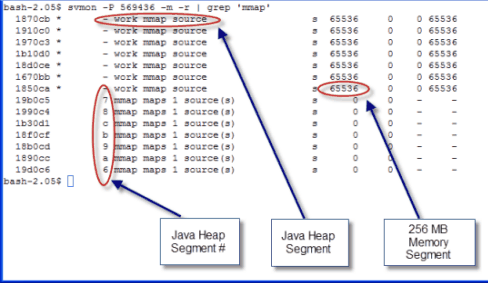
svmon -P <java process pid> -m -r | grep ‘mmap’


The above snapshots are clearly showing a total capacity of 7 Java Heap segments of 256 MB for total of 1792 MB.

The current utilization native heap allocation is split over 2 segments for total of total 424 MB. This means that we still have 2 full segments available for the Native Heap, if needed.

** Please note that the Java Heap snapshot corresponds to the Java Heap capacity, not utilization. The actual real Java Heap utilization must be captured via verbose GC or other monitoring tools **

Conclusion

The Native Heap can easily be monitored using the AIX svmon command. This provides you both the current memory footprint and a breakdown view of your Java process; including the segments reserved for your application Java Heap.

Native Heap should be monitored on a regular basis on production systems, including in capacity planning exercises such as load testing in order to determine any native memory problem such as memory leak.

2.08.2011

Root cause analysis approach for complex Java EE problems

This post describes the RCA (root cause analysis) analytic approach I have followed and developed over the last 10 years of developing, supporting and improving critical production Java EE enterprise systems.
My goal is to share how you should attack a major production problem and ultimately find the root cause along with the solution. It is important to note that the full RCA process must be done after the initial recovery of your environment since the #1 priority is to recover your client environment and business.

For this post, I will use the example of a sudden Oracle 10g SQL execution plan change as the root cause.

You can refer to the post below for a real life example on how I applied the same RCA approach.
OutOfMemoryError using EJB3 and JBoss 5

Problem overview

The first step is to recap and create a brief summary of the problem. At this stage, you should at least be aware on how the problem did manifest itself, including any error found from your server logs and problem(s) reported by your end user(s).

Ask yourself and answer the following questions:

·         What is the problem reported by the end users? Major clocking of the ordering application
·         What are the errors seen from your client applications? Browser clocking and blank page when using the ordering application
·         What are the errors found in your server logs? Several errors and timeouts observed when trying to extract data from our internal Oracle 10g database

Business impact

At the second step, it is important to understand and document the client impact.

Ask yourself and answer the following questions:

·         What is the business impact level (low, medium or high)? HIGH
·         What is the % of your end users affected (25%, 50% or 100%)? 100%
·          Is there any possible revenue loss for your client(s)? Yes, users are unable to purchase online products from our client

Gathering and validation of facts

At this point, you should have a high level view of the problem along with its associated business impacts.

The next step is quite crucial. At this stage, you need to revisit and gather all problem facts. Reproducing the problem may be required for some types of problems; especially if you are missing too much information / technical facts to move forward with your investigation.

For the next step, I apply some concepts of forward chaining reasoning, similar to what is used by a rule engine system.

The idea is to build a list of technical and non technical facts so you can either derive other facts and/or conclude on the root cause as per Java EE troubleshooting rules. By applying a forward chaining type of reasoning and analysis, you will eventually derive the root cause from all your technical and non technical input facts.

Please note that once you gain more experience, you will be able to also do some backward chaining RCA reasoning instead e.g. quickly start with a short list of possible root cause candidates and verify your Java EE problem facts until you get a match. This process is normally faster but requires the application support person to have more experience and knowledge on a multitude of Java EE problems and patterns.

The following statements are example of technical and non technical facts captured during the RCA process:

·         Recent change of the affected platform (yes or no)? No
·         Any recent traffic increase to the affected platform (yes or no)? No
·          Is this a new or existing problem and what is the frequency?  New problem, first time observed
·         What is the outcome of the JVM Thread Dump analysis (any pattern found such as downstream system hanging, internal deadlock etc.)? All threads are hanging and waiting for a response from our Oracle 10g database for a particular SQL e.g. Threads hanging in Socket.read() operation
·         What is the outcome of the JVM Heap Dump analysis (Java Heap leak or footprint problem etc.)? No Heap Dump generated and no OutOfMemoryError found in logs
·         Any other technical or non technical fact you can use as input? No other input fact collected

Facts derivation & conclusions:

·         Problem appears to be isolated between our application server and the database server and possibility more on database side (as per Thread Dump analysis); next step will require analysis of the Oracle 10g AWR report.


Processing of facts (forward chaining reasoning)

At this point, the idea is to inject new facts along with the current derived facts and/or conclusions. This process should also allow you to isolate the problem further, reducing gradually the list of possible root cause candidates.

Find below some examples:

·         What is the outcome of the Oracle 10g AWR report? The AWR report is showing very long running SQL, which correlates with the JVM Thread Dump analysis. Next step is to analyse the Oracle execution plan of the affected SQL
·         Analysis of the Oracle AWR report before and during the problem did reveal a sudden degradation of the affected SQL

Facts derivation & conclusions:

·         Problem appears to be isolated at the database level for one particular SQL

Process the final facts and derive the root cause

Once you have isolated the problem to a certain level; you can now complete your RCA by deriving the root cause itself.

Find below some examples:

·         What is the outcome of the Oracle SQL execution plan? The analysis did reveal that Oracle decided to change on the fly its execution plan to a sub optimal plan; causing a surge in the SQL elapsed time and CPU resource utilization

Root cause

At this point, you should have derived 1 or more possible root cause for your problem.

Root cause:

·         Root cause appear to be related to a sub optimal execution plan activated by Oracle following  some dynamic query input parameter injection

Please keep in mind that you will face situation where you will never find the root cause for your problem. The reason is simple: lack of proper input facts, preventing you to derive the exact root cause. This can happen if you fail to gather proper performance data such as JVM Thread Dump, Heap Dump, proper application logs and/or you fail to replicate the problem.

Don’t be discouraged as you can still try to narrow it down to a list of root cause candidates and improve your input fact gathering process in the event of any re-occurrence of your problem and for future problems.

Solution

Once you have found the root cause, you are now at the point to explore and implement a solution

·         Lock down the SQL execution plans by carefully controlling CBO statistics, using stored outlines (optimizer plan stability)
·         Add detailed hints to the SQL
·         Use Oracle10g SQL Profiles
·         Upgrade to Oracle 11g which offer a more elegant and evolutive execution plan solution

Conclusion

I hope this post did help you understand how I normally approach and resolve complex Java EE production problems. Please feel free to post any comment on your own RCA process experience along with your own suggestions.

2.06.2011

OutOfMemoryError PermGen using Weblogic 10.0 and Sun JDK 1.5

 This case study describes the complete steps from root cause analysis to resolution of a native memory leak (PermGen space) problem experienced with a Weblogic 10.0 environment using Sun JDK 1.5.0.

This case study will show how a simple tuning mistake of the JVM settings can have severe consequences as well as how the Java Heap Dump analysis can sometimes help pinpoint root cause of native memory leak involving class loaders.

Environment specifications

·         Java EE server: Weblogic 10.0
·         OS: Solaris 10
·         JDK: Sun JDK 1.5.0_14 (-XX:PermSize=512m -XX:MaxPermSize=512m -XX:+UseParallelGC  -Xms1536m -Xmx1536m -Xnoclassgc -XX:+HeapDumpOnOutOfMemoryError)
·         Platform type: Ordering Portal

Troubleshooting tools

·         JVM Heap Dump (hprof format)
·         VisualGC 3.0
·         Eclipse Memory Analyser 0.6.0.2 (via IBM Support Assistant 4.1)

Problem overview

·         Problem type: java.lang.OutOfMemoryError: PermGen space

This problem was brought to our attention because it was becoming unmanageable for the support team to support this production environment as it was constantly failing with this OutOfMemoryError. A task force was assigned to deep dive into the root cause and provide a permanent solution.

Problem mitigation did involve restarting all the Weblogic servers every 2 days.

Gathering and validation of facts

As usual, a Java EE problem investigation requires gathering of technical and non technical facts so we can either derived other facts and/or conclude on the root cause. Before applying a corrective measure, the facts below were verified in order to conclude on the root cause:

·         Recent change of the affected platform? No
·         Any recent traffic increase to the affected platform? Yes, the traffic of the environment has increased over the last few months
·         Since how long this problem has been observed?  This problem is affecting the platform since about 1 year
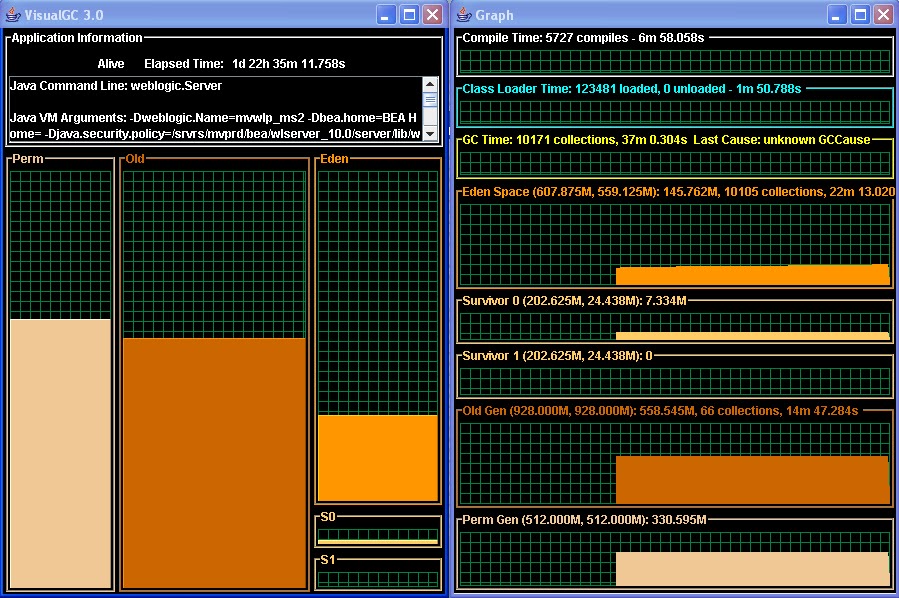
·         Is the permanent generation space growing suddenly or over time? It was observed using VisualGC tool that the PermGen space is growing on a regular / daily basis
·         Did a restart of the Weblogic server resolve the problem? No, restarting the Weblogic server is only used as a mitigation strategy to prevent the OutOfMemoryError

·         Conclusion #1: The problem is related to a memory leak of the Sun JVM permanent generation space (PermGen)
·         Conclusion #2: The recent load increase seems responsible (trigger) of the increased need to restart the Weblogic servers


PermGen memory monitoring (via VisualGC)

PermGen space monitoring was performed via the Sun VisualGC 3.0 monitoring tool.
http://java.sun.com/performance/jvmstat/visualgc.html

You can see below the evolution the of permanent space leak over a 24 hours period.


-          December 24, 2010 @00:00 AM : PermGen @255MB


-          December 24, 2010 @9:00 PM : PermGen @325MB


-          December 25, 2010 @5:00 AM : PermGen @330MB


The review of the VisualGC data was quite conclusive on the fact that our application was leaking the PermGen space on a regular basis. Now the question was why.

JVM Heap Dump

A few JVM Heap Dumps (java_pid<xyz>.hprof format) were generated by the Sun JVM following some occurrences of the OutOfMemoryError.

Please note that a Heap Dump represents a snapshot of the Java Heap. PermGen is not normally part of a JVM heap dump but it still provide some information on how many classes were loaded, how many class loaders etc. as a pointer (stub) to the real native memory object stored in the native memory space.

Heap Dump analysis

The heap dump was analysed using Eclipse Memory Analyser in order to try to get information on the loaded classes and classloaders.


The analysis did reveal:

·         High amount of instances of java.lang.Class loaded by the system class loader (leak suspect #2). These classes did not appear to be referenced anymore.

JVM memory arguments review

Following the findings from the Heap Dump analysis, a review of the JVM start-up arguments was done in order to determine any configuration problem. We found immediately a suspected problem with one parameter: -Xnoclassgc.

By default the JVM unloads a class from the PermGen space when there are no live instances of that class left, but this can degrade performance in some scenarios. Turning off class garbage collection eliminates the overhead of loading and unloading the same class multiple times.

If a class is no longer needed, the space that it occupies on the heap is normally used for the creation of new objects. However, for an application that handles requests by creating a new instance of a class, the normal class garbage collection will clean up this class by freeing the PermGen space it occupied, only to have to re-instantiate the class when the next request comes along. In this situation you might want to use this option to disable the garbage collection of classes.

However, in the Java EE world, this is normally a bad idea since many applications creates classes dynamically, or uses reflection, because for this type of application, the use of this option can lead to native memory leak and exhaustion.

Root cause

The analysis of the Heap Dump and JVM arguments review did confirm the following root cause:

·         The addition of the –Xnoclassgc flag did disable the Sun JVM PermGen garbage collection and was leaking the PermGen space since our application rely on frameworks using frequent dynamic class loading and Java Reflection.
·         It was determined that a human error did introduce this parameter during the load testing phase (performed about 1 year ago) during an attempt to tune the garbage collection process of the Java Heap.

Solution and tuning

2 areas were looked at during the resolution phase:

·         Removal of the –Xnoclassgc flag from one of our production servers along with monitoring.
·         Ensure that re-enabling the Class garbage collector does not create any major overhead on the garbage collection and/or CPU utilization.

The removal of this JVM argument did provide an instant relief with no negative side effect. The VisualGC snapshots did confirm that the PermGen space was now quite stable and stabilizing around the 200 MB figures and no longer leaking.

Recommendations and best pratices

·         When facing OutOfMemoryError problems, always start with the basics e.g. first review your JVM start-up arguments for any obvious tuning problem before moving to deep dive analysis.
·         Take advantage of the Elipse Memory Analyser heap dump analysis tool as it may be able to help you pinpoint certain types of native memory leak

2.03.2011

OutOfMemoryError using Oracle Weblogic 10.0 and JRockit

This case study describes the complete steps from root cause analysis to resolution of a native memory problem experienced with a Weblogic 10.0 environment using Oracle JRockit R27.5.0.
Environment specifications

·         Java EE server: Weblogic 10.0
·         OS: Microsoft Windows server 2007 (32 bit) with 4G of RAM
·         JDK: Oracle JRockit(R) R27.5.0 (JDK 1.5.0_14)
·         RDBMS: Oracle Database 10g Enterprise Edition Release 10.2.0.2.0
·         Platform type: Internal Billing System


Monitoring and troubleshooting tools

·         JVM Thread Dump (JRockit JDK 1.5 format)
·          netstat OS command
·         Windows System Monitor tool

Problem overview

·         Problem type: Intermittent OutOfMemoryError and java.net.SocketException: No buffer space available

Intermittent problems was experienced on a Weblogic 10.0 environment and causing full outage. The problem did manifest as 2 different flavours:

      1) java.net.SocketException: No buffer space available

Caused by: java.net.SocketException: No buffer space available (maximum connections reached?): connect
        at java.net.PlainSocketImpl.socketConnect(Native Method)
        at java.net.PlainSocketImpl.doConnect(PlainSocketImpl.java:333)
        at java.net.PlainSocketImpl.connectToAddress(PlainSocketImpl.java:195)
        at java.net.PlainSocketImpl.connect(PlainSocketImpl.java:182)
        at java.net.SocksSocketImpl.connect(SocksSocketImpl.java:366)
        at java.net.Socket.connect(Socket.java:520)
        at weblogic.net.http.HttpsClient.openWrappedSSLSocket(HttpsClient.java:652)
        at weblogic.net.http.HttpsClient.openServer(HttpsClient.java:282)
        at weblogic.net.http.HttpsClient.openServer(HttpsClient.java:524)
        at weblogic.net.http.HttpsClient.<init>(HttpsClient.java:226)
        at weblogic.net.http.HttpsClient.<init>(HttpsClient.java:214)
        at weblogic.net.http.HttpsURLConnection.getHttpClient(HttpsURLConnection.java:262)
        at weblogic.net.http.HttpURLConnection.getInputStream(HttpURLConnection.java:414)
        at weblogic.net.http.SOAPHttpsURLConnection.getInputStream(SOAPHttpsURLConnection.java:37)
        at weblogic.wsee.connection.transport.TransportUtil.getInputStream(TransportUtil.java:82)
        at weblogic.wsee.connection.transport.http.HTTPClientTransport.receive(HTTPClientTransport.java:196)
        at weblogic.wsee.ws.dispatch.client.ConnectionHandler.handleResponse(ConnectionHandler.java:162)


2)       java.lang.OutOfMemoryError

--------------------------------------
/app/ejb/AppEJB.jar#orderService.; remaining name 'comp/env/loggingConfig'
javax.ejb.EJBException: EJB Exception: : java.lang.OutOfMemoryError: class allocation, 206363036 loaded, 8428437362228854784 footprint JVM@check_alloc (src/jvm/model/classload/classalloc.c:118). 3
at java.lang.ClassLoader.defineClass1(Native Method)
--------------------------------------


Problem mitigation did involve restarting the affected Weblogic server(s) when problem was observed.

Gathering and validation of facts

As usual, a Java EE problem investigation requires gathering of technical and non technical facts so we can either derived other facts and/or conclude on the root cause. Before applying a corrective measure, the facts below were verified in order to conclude on the root cause:

·         Recent change of the affected platform? Yes, the platform did recently migrate the application from Weblogic 7.0 and Sun JDK 1.4 to Weblogic 10.0 and JRockit 27.5
·         Any recent traffic increase to the affected platform? No
·          Was Windows server performance data collected during the problem? Yes, the performance data was collected during the problem and did reveal the server was running low on physical RAM and virtual memory
·         Any upstream and/or downstream system problem reported? No problem reported for any downstream application; including the internal Oracle10g database
·         Did a restart of the Weblogic server resolve the problem? No, restarting the Weblogic server did only temporary alleviate the problem for about just a few hours

Netstat analysis

Given the severe Socket Exception found in log: java.net.SocketException: No buffer space available. The initial thinking was to analyse the number of connected and hanging sockets during the problem e.g. investigate any possible Socket leak issue.

This was achieved by executing the Windows command: netstat *note that you can also use netstat –an to bypass the DNS resolution*


Active Connections

  Proto  Local Address          Foreign Address        State
  TCP    SERVER_HOSTNAME :1039        SERVER_HOSTNAME xyz.xyz.xyz.xy:1040  ESTABLISHED
  TCP    SERVER_HOSTNAME :1040        SERVER_HOSTNAME xyz.xyz.xyz.xy:1039  ESTABLISHED
  TCP    SERVER_HOSTNAME :1044        SERVER_HOSTNAME xyz.xyz.xyz.xy:1045  ESTABLISHED
  TCP    SERVER_HOSTNAME :1045        SERVER_HOSTNAME xyz.xyz.xyz.xy:1044  ESTABLISHED
  TCP    SERVER_HOSTNAME :1046        SERVER_HOSTNAME xyz.xyz.xyz.xy:5988  CLOSE_WAIT
  TCP    SERVER_HOSTNAME :1047        SERVER_HOSTNAME xyz.xyz.xyz.xy:1196  ESTABLISHED
  TCP    SERVER_HOSTNAME :1196        SERVER_HOSTNAME xyz.xyz.xyz.xy:1047  ESTABLISHED
  TCP    SERVER_HOSTNAME :microsoft-ds  111.11.11.11:1451      ESTABLISHED
  TCP    SERVER_HOSTNAME :1028        SERVER_HOSTNAME xyz.xyz.xyz.xy:7001  ESTABLISHED
  TCP    SERVER_HOSTNAME :1031        xyz.xyz.xyz.xy:1521  ESTABLISHED
  TCP    SERVER_HOSTNAME :1032        xyz.xyz.xyz.xy:1521  ESTABLISHED ………………………………………………………………………………………………………..


However, the analysis was not conclusive since we found only a low volume of active and hanging sockets and no pattern that may suggest any sort of Socket leak as the root cause.

JRockit, OutOfMemoryError and log analysis

Analysis of this error found in the log was the key finding.

--------------------------------------
/app/ejb/AppEJB.jar#orderService.; remaining name 'comp/env/loggingConfig'
javax.ejb.EJBException: EJB Exception: : java.lang.OutOfMemoryError: class allocation, 206363036 loaded, 8428437362228854784 footprint JVM@check_alloc (src/jvm/model/classload/classalloc.c:118). 3
at java.lang.ClassLoader.defineClass1(Native Method)
--------------------------------------

This error did indicate that JRockit was unable to execute a simple Class allocation. These types of Java operations require native memory to be available (class declarations are loaded in native memory).
Here is some background on the Oracle JRockit memory management:

·         Java heap – This is the memory that the JVM uses to allocate java objects.
·         The maximum value of java heap memory is specified using –Xmx flag in the java command line. If the maximum heap size is not specified, then the limit is decided by the JVM considering factors like the amount of physical memory in the machine and the amount of free memory available at that moment. It is always recommended to specify the max java heap value.
·         Native memory – This is the memory that the JVM uses for its own internal operations. The amount of native memory heap that will be used by the JVM depends on the amount of code generated, threads created, memory used during GC for keeping java object information and temporary space used during code generation, optimization etc.
·         JRockit tend to uses more native memory in exchange for better performance. JRockit does not have an interpretation mode, compilation only, so due to its additional native memory needs the process size tends to use a couple of hundred MB larger than the equivalent Sun JVM size.
·         JRockit does not have a separate permanent generation space (PermSize) as it is unbounded in the native memory section (for JRockit: heap+native memory [footprint] = process size).


Windows system performance data analysis

The team then did review the performance data captured by the Windows System Monitor tool.
The logs did indicate that Windows was running quite low on physical RAM; correlating with the earlier OutOfMemoryError analysis.

Root cause

The review and analysis of the 2 errors found did confirm the following root cause:

·         Migrating from Weblogic 7.0 with Sun JDK 1.4 to Weblogic 10.0 with JRockit 27.5 did increase the native memory footprint required to run our application and ultimately leading to a break point under load.
·         The OutOfMemoryError was due to the Windows server running out of physical RAM and preventing JRockit to successfully allocate its Java class definitions in the native memory.
·         The java.net.SocketException: No buffer space available error did also manifest itself as a different flavour but also caused by a shortage of native / virtual memory.

Solution and tuning

3 areas were looked at during the resolution phase:

·         After proper analysis, we decided to reduce of the Java Heap size by 256 MB which had plenty of buffers, in order to increase our native memory capacity.
·         Revisit and reduce the application native memory footprint. That task was put on hold until implementation and monitoring of the first solution.
·          Consider upgrading to a 64bit JRockit VM. That task was put on hold until implementation and monitoring of the first solution.

Results: the reduction of the Java Heap did provide an instant relief as it did provide more physical RAM / native memory for our application and JRockit needs. We are still considering the approach #2 and #3 for future releases.

Recommendations and best practices

·         Always perform proper capacity planning when working on a Weblogic and JDK upgrade; including proper analysis of your application Java Heap and native footprint before and after upgrade.
·         When using Oracle JRockit, especially for a 32bit system, ensure to fine tune your memory ratio properly e.g. Java Heap vs. native memory.